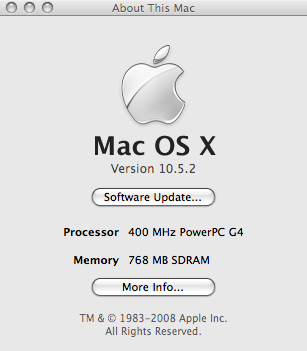
I wanted to run Leopard on a 400MHz Power Mac G4 (AGP graphics) for OpenVPN and L2TP VPN testing (here is the result in case you're interested). Since Apple has arbitrarily restricted the Leopard installer to 867MHz or greater CPUs, a workaround was necessary. But before that, Power Mac G4 Firmware Update 4.2.8 had to be installed from within OS 9, otherwise the Leopard DVD would not boot (thanks to Charles for the heads up).
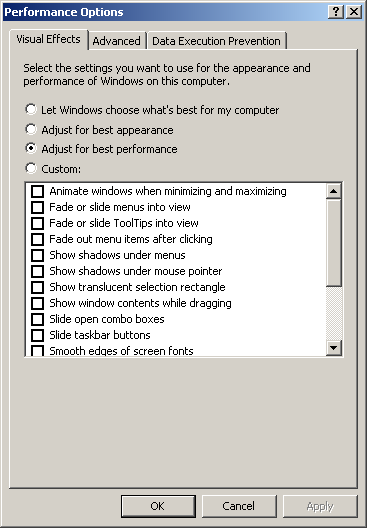
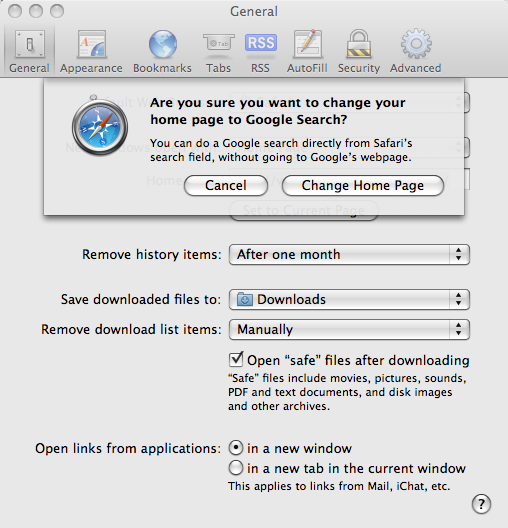
Once it was all up and running, performance wasn't half bad (wouldn't want to edit any video on this thing, though). It would be nice if OS X offered a Performance Options preference like Windows XP to turn off all the eye candy. Oh, and Steve: please lose the "Are you sure you want to change your home page to Google Search? We make money when you use Safari's search field." warning - it's unprofessional.
Rather than the onerous patching process mentioned previously, Dylan's Open Firmware hack takes just a few seconds and makes Leopard think you're running at 867MHz:
dev /cpus/PowerPC,G4@0
d# 867000000 encode-int " clock-frequency" property
boot cd:,\\:tbxidev /cpus/PowerPC,G4@0
d# 867000000 encode-int " clock-frequency" property
dev /cpus/PowerPC,G4@1
d# 867000000 encode-int " clock-frequency" property
boot cd:,\\:tbxiThere is an OS X app to automate the process if you prefer: LeopardAssist.
After installing and updating Leopard to 10.5.2, it's time to tweak a few UI settings:
defaults write com.apple.dock no-glass -boolean YES; killall Dockdefaults write com.apple.dashboard mcx-disabled -boolean YES; killall Docksudo launchctl unload -w /System/Library/LaunchDaemons/com.apple.metadata.mds.plist
sudo launchctl unload -w /System/Library/LaunchAgents/com.apple.Spotlight.plistHere are several freeware apps that include performance tweaking features:
created: 2008.02.17, updated: 2021.11.13